
Claude Desktop
Route Claude Desktop on Windows or macOS through AsterFlow's third-party inference gateway.
Scope
This guide configures Claude Desktop's third-party inference gateway. Once applied, Claude Desktop sends its inference requests to AsterFlow; this is not a setting for only one Code session.
Windows desktop guide
1. Install Claude Desktop
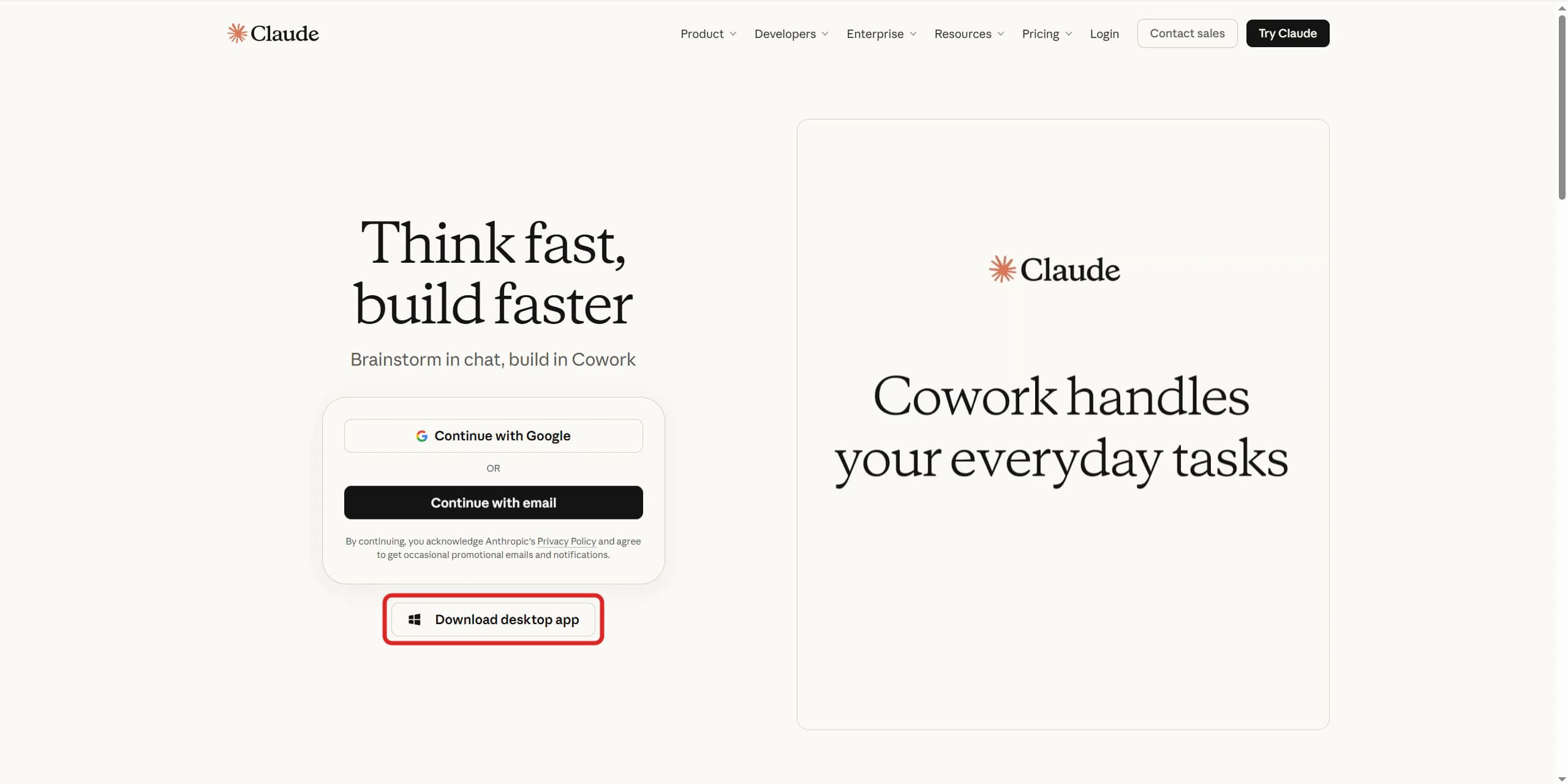
Open the official Claude page, select Download desktop app, and install the Windows version.
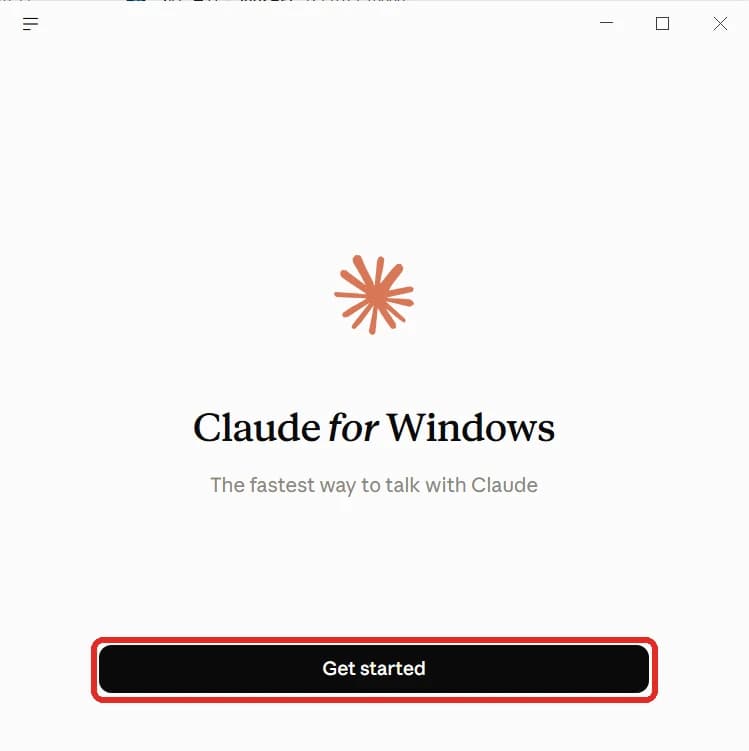
Open Claude Desktop after installation, then select Get started.
2. Get an AsterFlow key
Open the AsterFlow token page, then create or copy a working API key.
3. Open third-party inference settings
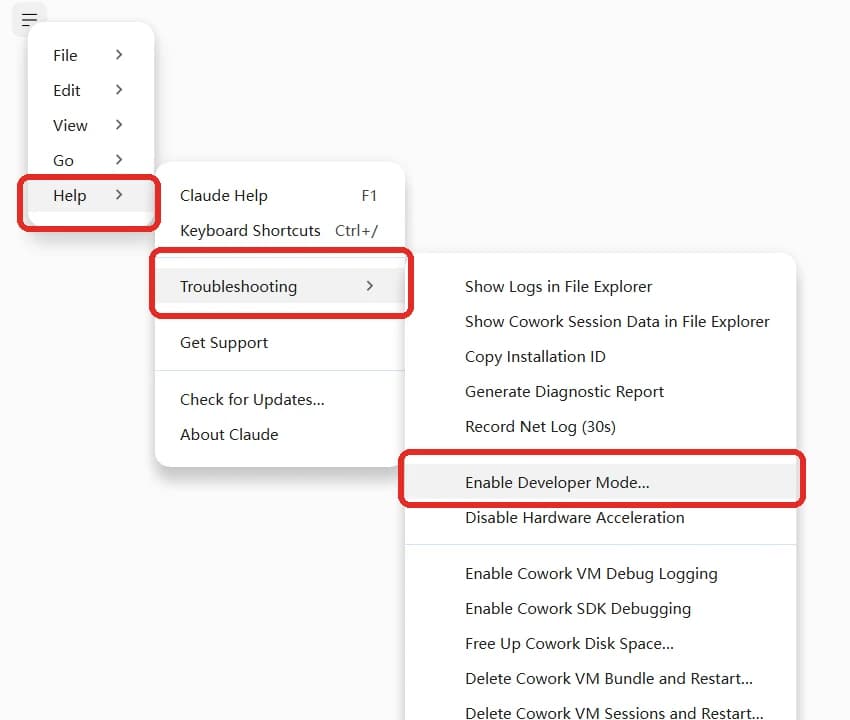
- Open Claude Desktop and select the
☰menu in the top-left corner. - If Developer is already present, skip to step 4.
- If Developer is not present, open Help → Troubleshooting → Enable Developer Mode....
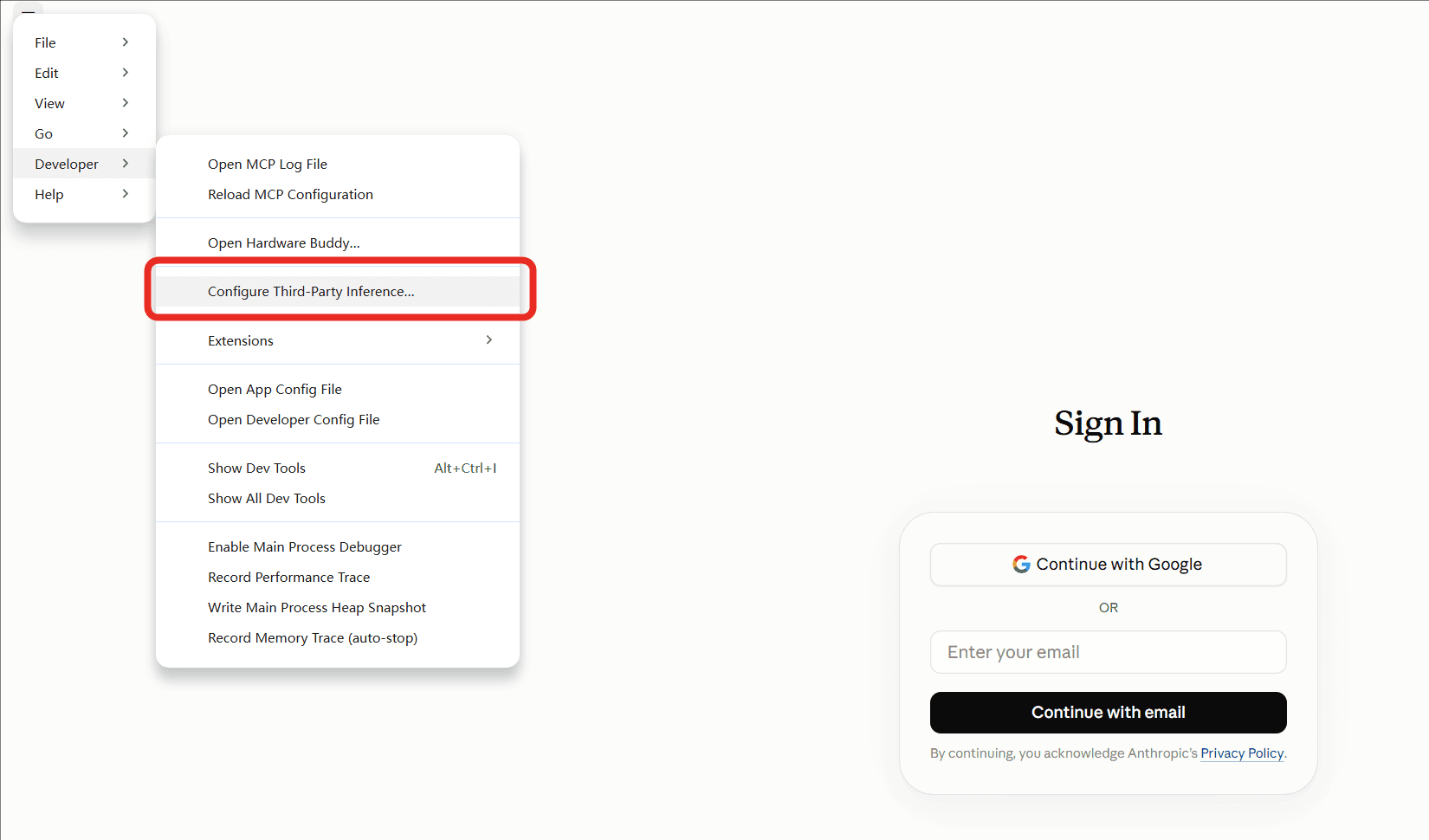
After Claude restarts, open the top-left menu again.
- Open Developer → Configure Third-Party Inference....
4. Enter the AsterFlow settings
Enter the following values on the Connection page:
| Setting | Value |
|---|---|
| Connection / Inference provider | Gateway |
| Credential kind | Static API key |
| Gateway base URL | https://asterflow.ai |
| Gateway API key | Your AsterFlow API key |
| Gateway auth scheme | bearer |
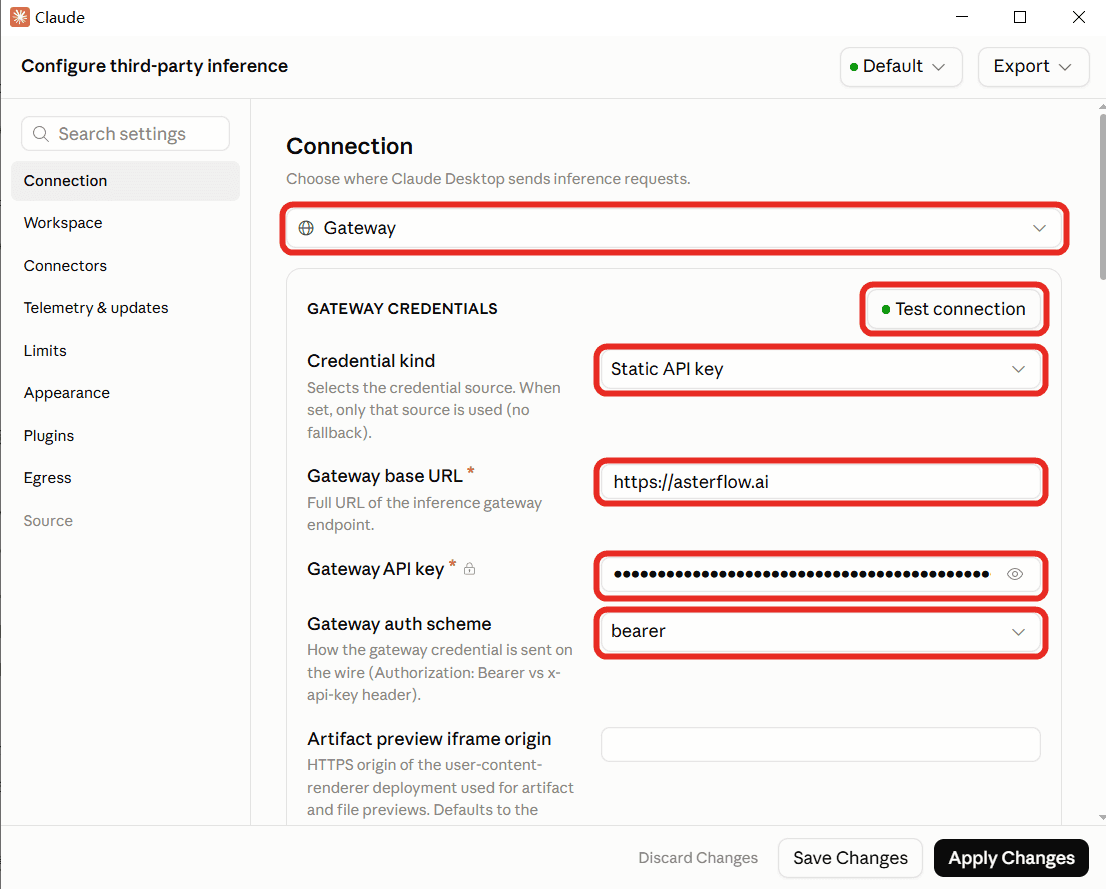
Select Test connection first. Once the test passes, select Apply Changes, then Save & Restart when prompted. After the app restarts, choose the option to use the third-party inference configuration you just saved.
Do not add /v1
Set Gateway base URL to https://asterflow.ai without /v1 at the end.
5. Verify the connection
Open Code, create a new task, and send hello. After you receive a response, confirm the request in the AsterFlow usage logs. If an existing session still uses the old settings, fully quit and reopen Claude.
A passing connection test or saved configuration still requires the real request check above.
macOS desktop guide
1. Install Claude Desktop
Open the official Claude download page and download the macOS .dmg installer.
Open the installer, drag Claude.app to Applications, then open Claude from Applications. If Get started appears, select it to reach the initial screen.
You do not need to sign in or create a Claude account before configuring third-party inference.
2. Get an AsterFlow key
Open the AsterFlow token page, then create or copy a working API key.
3. Open third-party inference settings
Click the Claude window to make it the active app. Use the macOS menu bar at the top of the screen for the following steps.
If Developer is not present, select Help → Troubleshooting → Enable Developer Mode... and follow the prompts. If the app restarts, return to Claude.
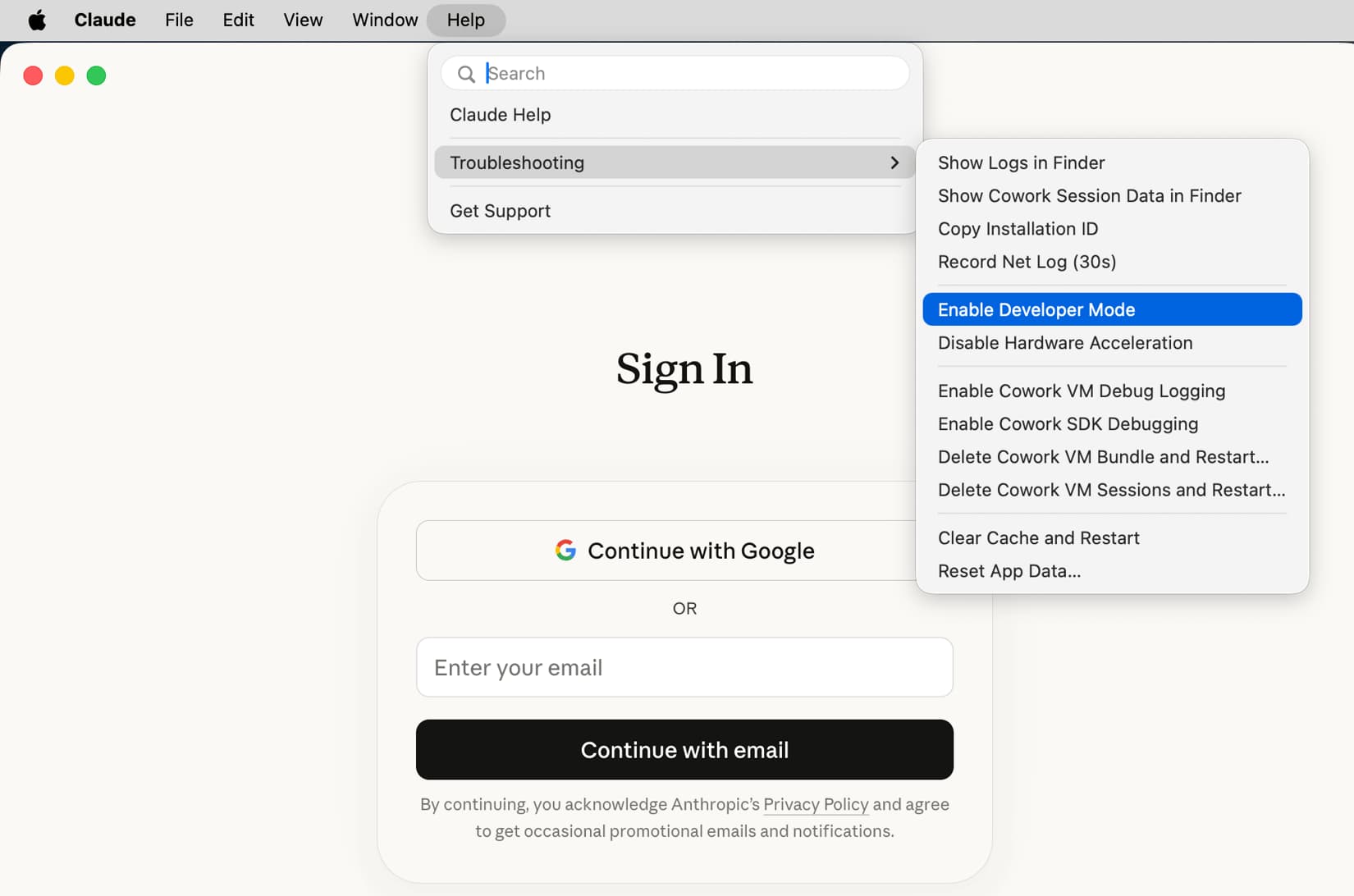
Then select Developer → Configure Third-Party Inference... in the menu bar.
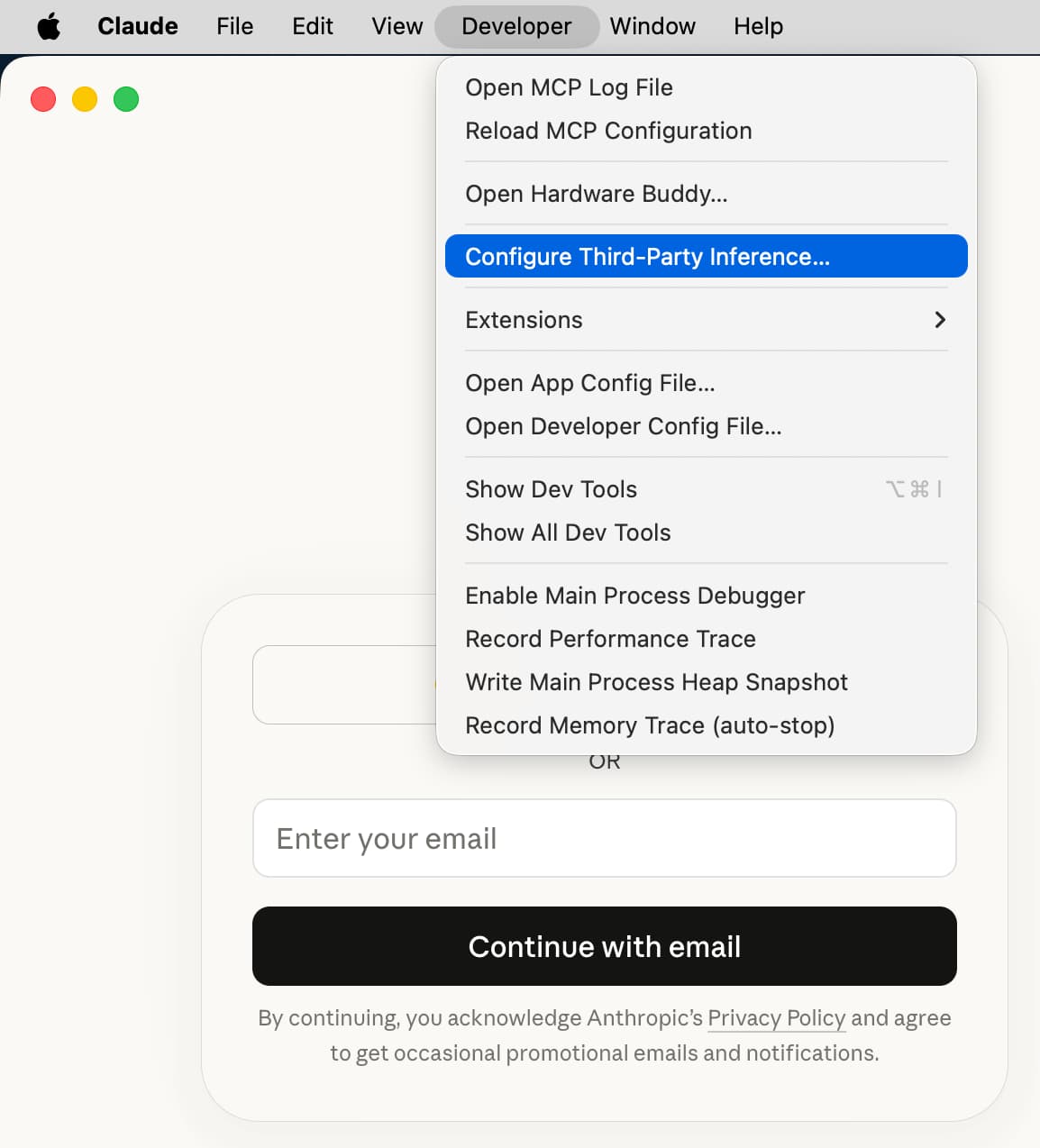
Both menu screenshots are from the OpenRouter guide.
4. Enter the AsterFlow settings
Open Connection and select Gateway. The screenshot below is the macOS configuration example from Claude's official documentation:
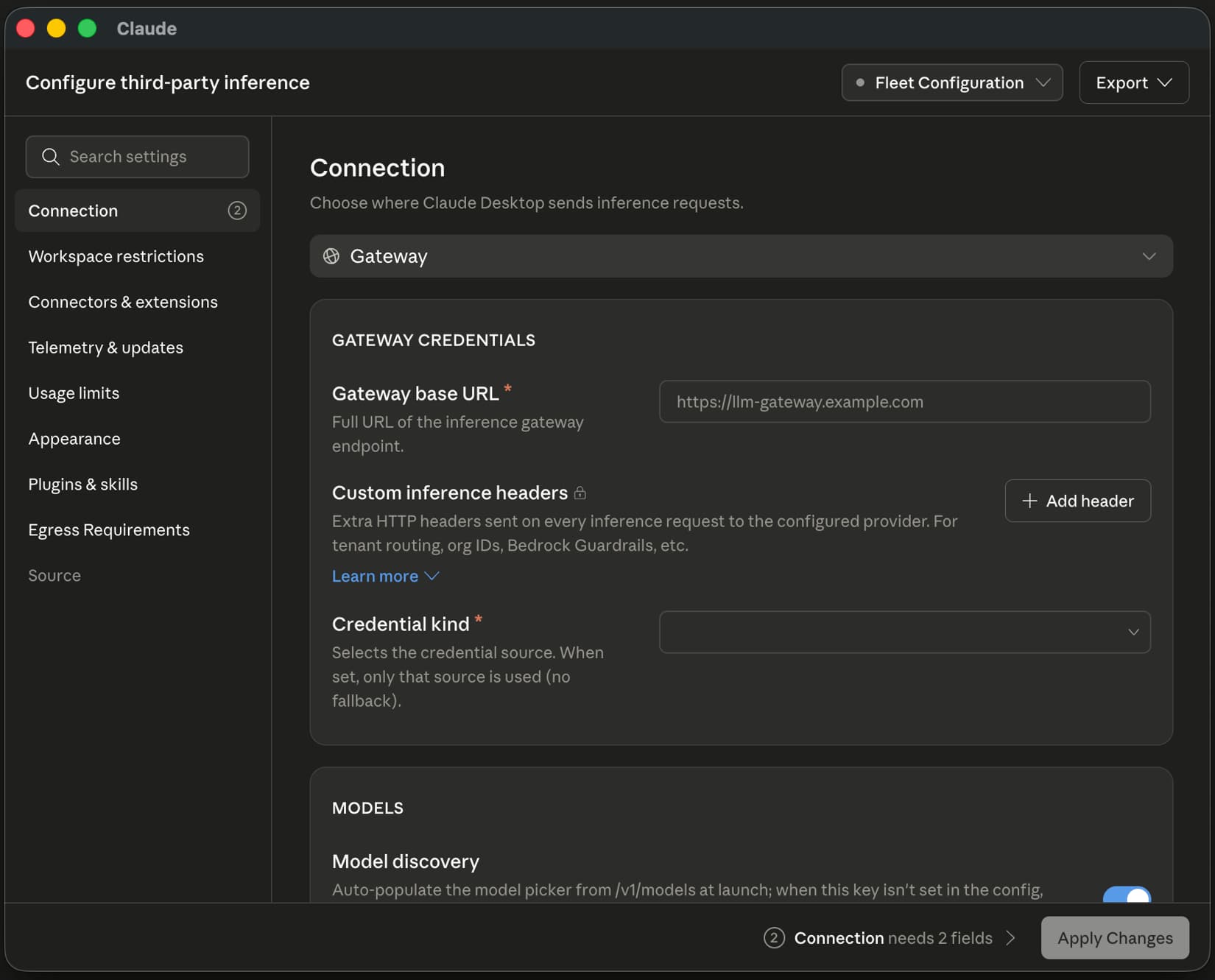
Source: Claude documentation. The URL https://llm-gateway.example.com in the image is a placeholder. Use the AsterFlow values below.
| Setting | Value |
|---|---|
| Connection / Inference provider | Gateway |
| Credential kind | Static API key |
| Gateway base URL | https://asterflow.ai |
| Gateway API key | Your AsterFlow API key |
| Gateway auth scheme | bearer |
Select Static API key, then enter the key and authentication scheme. Select Test connection. Once it passes, select Apply Changes, then Save & Restart when prompted.
Do not add /v1
Set Gateway base URL to https://asterflow.ai without /v1 at the end.
5. Verify the connection
After the app restarts, choose the option to use the third-party inference configuration you saved. Open Code, create a new task, and send hello.
After receiving a normal response, confirm this request in the AsterFlow usage logs. A passing connection test or saved configuration does not replace a real request check.
If the app still uses the old settings, use Claude → Quit Claude (Command + Q) and reopen it. Closing the window does not quit the app.
References
See Anthropic's installation guide, in-app configuration guide, and gateway configuration guide.